Using the Calendar Feeds
The calendars produced by Calendar Sync for Jira are URLs that serve iCalendar data. You find them on the My Calendars page.
Finding your calendar URL
In Jira, open the Apps section in the sidebar.
Choose My Calendars.
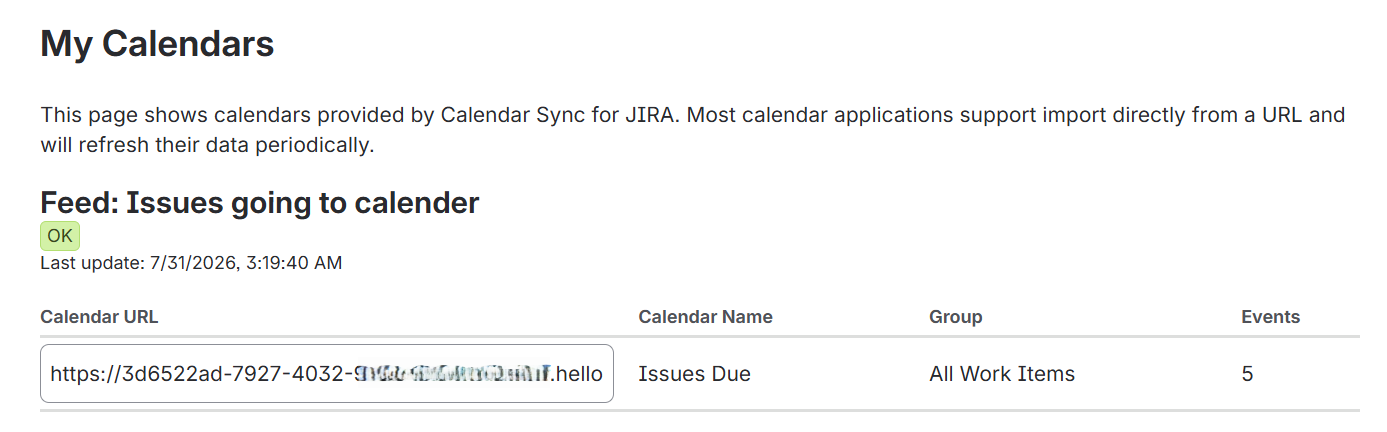
The page lists every feed you are allowed to see. For each one, it shows:
Column | Description |
|---|---|
Calendar URL | The address to use in your calendar application |
Calendar Name | The calendar's title, as your application will display it |
Group | Which group of events does this calendar contain |
Events | How many events does it currently hold |
Select the text in the Calendar URL field and copy it, then paste it into your calendar application using the instructions for your application below.
If you see no calendars at all, no feeds have been shared with you yet - contact your Jira administrator.
Roadmap note: There is no Copy to clipboard button and no one-time Download button in the current version. Both are planned for a future update. For now, select the URL from the read-only field and copy it.
If a feed is still building
A feed that has never completed an export shows a BUILDING badge and this message instead of a URL:
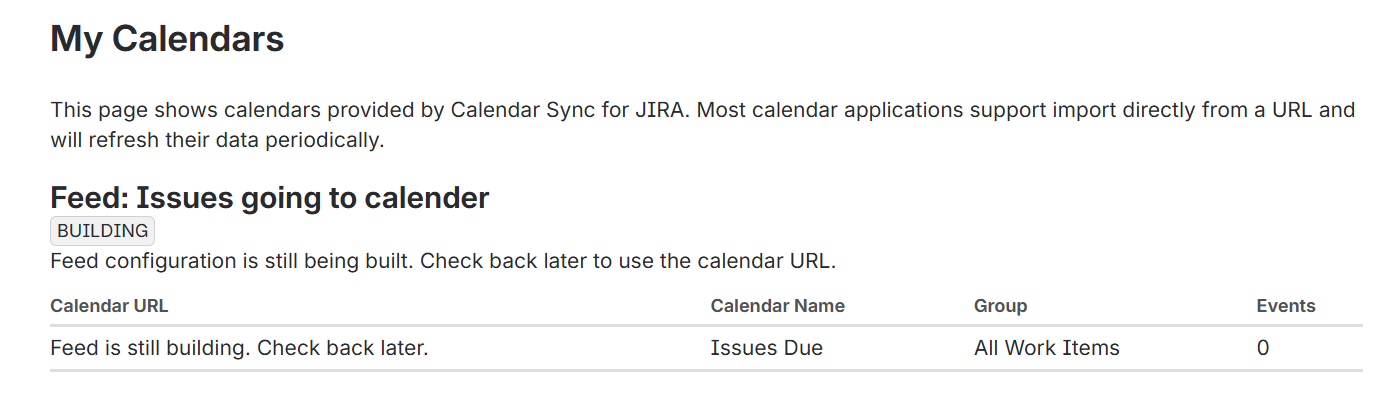
No URL is issued until the first export succeeds, so there is nothing you can subscribe to yet. This normally clears within an hour of the feed being created. See Administration.
Keep your calendar URL private
The URL contains its own credentials, which is what lets your calendar application fetch data without signing in. Anyone who has the URL can read the calendar. Do not post it in a shared channel, a wiki page or a ticket. See Security.
Google Calendar
Copy the calendar URL from My Calendars.
In Google Calendar, find Other calendars in the left sidebar and click the +.
Choose From URL.
Paste the address and click Add calendar.
After a short while, the calendar appears under Other calendars, and its events appear in the grid.
Google refreshes subscribed calendars several times a day, and it can take up to 12 hours for a change in Jira to appear. This delay is entirely under Google's control - there is no way to refresh a subscribed calendar manually. See Google's documentation.
iPhone or iPad
You will need the URL on the device, so the easiest route is to copy it to a computer and email it to yourself.
On a computer, copy the calendar URL from My Calendars and send it to yourself in an email.
On the device, open the email and copy the URL.
Go to Settings → Calendar → Accounts → Add Account → Other.
Choose Add Subscribed Calendar.
Paste the URL into the Server field and tap Next, then Save.
Open the Calendar app. Your Jira events should now appear.
You can control how often the calendar updates in the account's Fetch New Data settings, and you can pull to refresh manually.
Microsoft Outlook (Desktop)
Copy the calendar URL from My Calendars.
In Outlook's Calendar view, expand Open Calendar and choose From Internet…
Paste the address and click OK.
Confirm the subscription when prompted.
After a short while, the calendar appears under Other Calendars and in the main window.
Outlook synchronises subscribed calendars whenever a Send / Receive happens, whether you trigger it yourself or it runs on Outlook's automatic polling interval.
Outlook only displays subscribed events from roughly the last 365 days. Older events are in the feed but Outlook will not show them. This is worth knowing before you conclude a feed is incomplete.
Microsoft Outlook.com
Copy the calendar URL from My Calendars.
In Outlook.com Calendar, choose Add calendar, then Subscribe from web.
Paste the address, type a name for the calendar, and click Import.
After a short while, the calendar appears in the sidebar and in the main window.
Outlook.com can take more than 24 hours to reflect a change made in Jira, and there is no manual refresh. This delay is entirely under Outlook's control.
Other calendars
Calendar Sync for Jira works with any application that can subscribe to an iCalendar URL - the data is in the widely supported iCalendar format and is served over an ordinary HTTPS address. Copy the URL from My Calendars and paste it wherever your application asks for a calendar address to subscribe to.
Thunderbird, for example, handles these feeds well and lets you set the refresh interval yourself, which makes it a good choice if you want your calendar to keep a closer pace with Jira than Google or Outlook allow.
Why your calendar might not match Jira exactly
Two independent delays sit between a change in Jira and what you see:
Calendar Sync for Jira rebuilds each feed every 12 hours.
Your calendar application then collects that data on its own schedule - often 12 to 24 hours.
See Calendar updates for the details, and Troubleshooting and limitations if something looks wrong, rather than just late.