Configuring Feeds
Configuration is available to Jira administrators. Go to Jira settings → Apps → Calendar Sync Admin Page.
Calendar Feeds
The Calendar Sync Admin Page lists every calendar feed on the site along with the status of its most recent export.
Column | Description |
|---|---|
Name | The name of the feed |
Last edit | When the feed configuration was last changed |
Status | Status of the most recent export |
Last Export | Date and time of the most recent export |
Next Refresh | When the feed is next due to be rebuilt |
Time to export | How long the last export took, in seconds |
Events | How many events were produced |
JQL | The query the feed uses |
Actions | Edit, Duplicate and Delete |
The list refreshes itself every 30 seconds, so you can leave it open and watch a feed build.
Status values
Status | Meaning |
|---|---|
| Queued, waiting for the next scheduled run |
| Being exported right now |
| The last export succeeded |
| The last export failed |
An error means the feed could not be exported. The most common cause is an invalid or unrunnable JQL query. If a previous export succeeded, the calendar continues to serve that older data until a rebuild succeeds. See Troubleshooting and limitations.
Actions
Create new Feed - the button below the grid. Starts a new feed with a clean slate.
Edit - the pencil icon on a row. Opens the same form used to create a feed.
Duplicate - the copy icon. Creates a new feed with identical settings and
(Copy)appended to the name. The copy is queued for building immediately.Delete - the bin icon. You are asked to confirm. Deleting a feed permanently removes its calendars and events, and any subscription to it stops working.
Global calendar configuration - the button beside the heading. Covered in Administration.
Creating and Editing feeds
Creating a feed and editing one use the same form, laid out across six tabs:
Basic Info → Event Date & Time → Event Contents → JQL Query → Security → Test Configuration
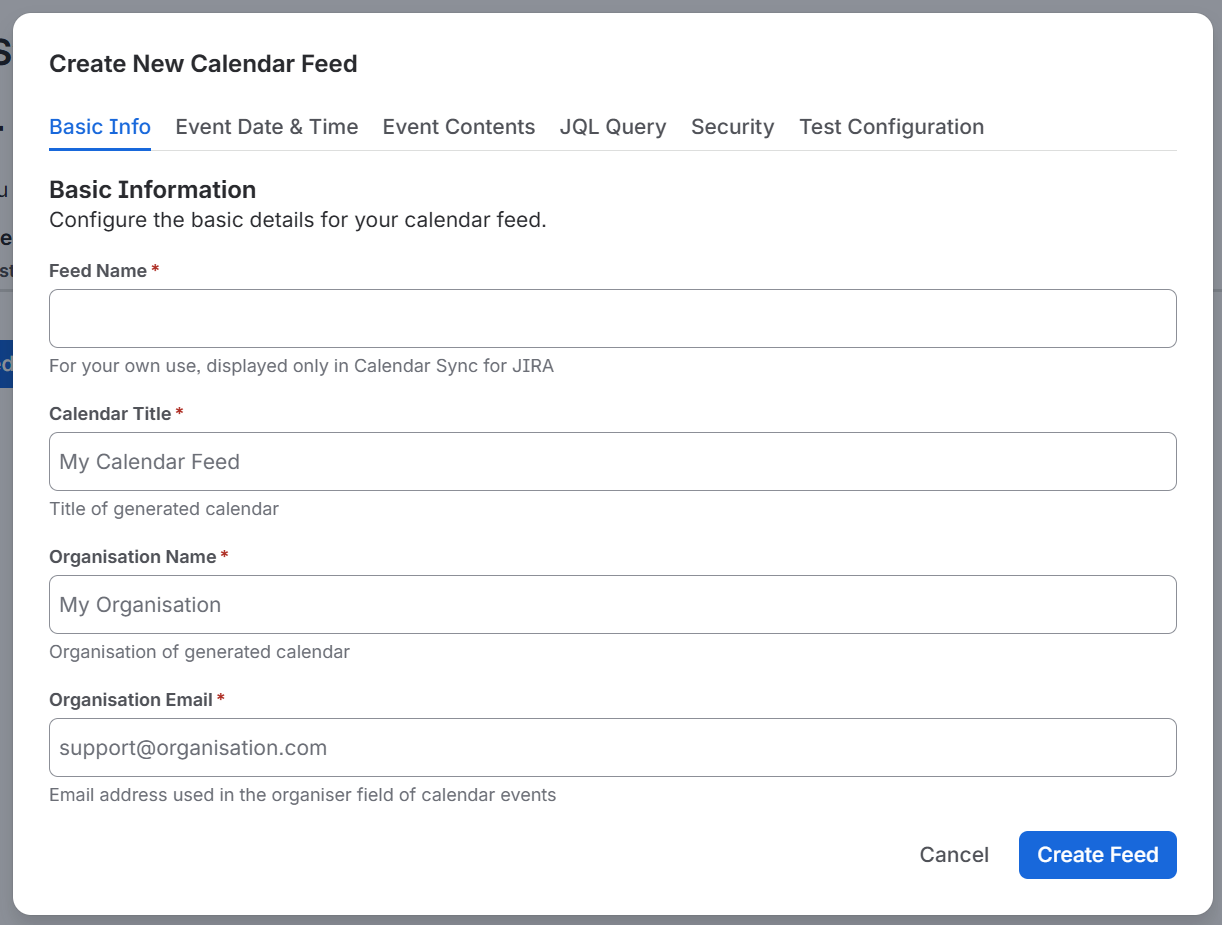
The order is deliberate: set up your date mapping before you write the query, so that when you test the query, you can see the mapped date values in the results.
Use Create Feed / Update Feed at the bottom of the form to save, or Cancel to discard. Validation errors from every tab are listed together at the bottom of the form, so a missing field on a tab you have not opened will still be reported.
Saving a feed queues it for rebuilding immediately.
Basic Info tab
Field | Required | Description | |
|---|---|---|---|
Feed Name | Yes | For your own use. It is only ever displayed inside Calendar Sync for Jira. | |
Calendar Title | Yes | The title of the generated calendar. Most calendar applications display this as the calendar's name. Filled in automatically from Feed Name, and editable. | |
Organisation Name | Yes | Copied into the organisation name of the generated calendar. | |
Organisation Email | Yes | Used in the organiser field of every event in the calendar. | |
Calendar ID | - | Shown read-only when you are editing an existing feed. Useful when raising a support request. |
Google Calendar and Outlook ignore the organiser recorded in a subscribed calendar, so Organisation Email may not be visible to your users in those applications. It is still written into the feed for clients that do use it.
Event Date & Time tab
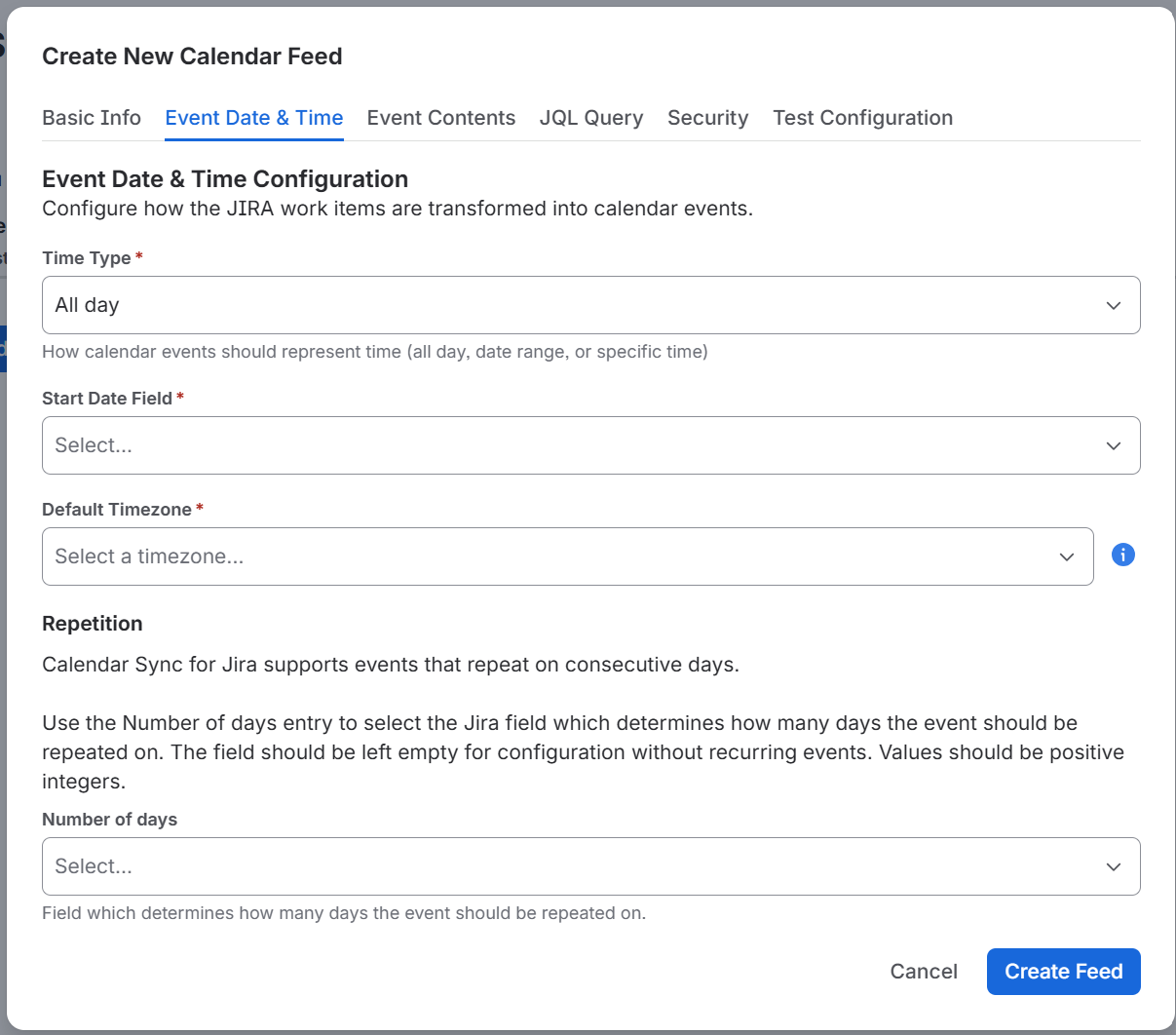
This tab determines how Calendar Sync for Jira calculates each event's date and time from the fields on a work item.
Start by choosing the Time Type, then the date field or fields it needs.
Time Type | What it produces |
|---|---|
All day | A single whole-day event |
Date range | An event spanning from one date to another |
Date time | An event with a specific start time and a calculated end time |
Start Date Field (required, all time types) - the field that provides the event's start. Only date and date/time fields are offered.
If the date field is empty or holds a value the app cannot read, on any work item matching the query, those work items are left out of the calendar feed. This is the single most common reason a feed shows fewer events than the query returns.
All-day events
Field | Description |
|---|---|
Default Timezone | A date and time can fall on different days depending on the timezone, so the timezone decides which day the event lands on. |
Date range
Exports events with a start and an end date taken from two fields. Intended for events that span multiple days.
Field | Description |
|---|---|
Default Timezone | The timezone used to read the two date fields |
End Date Field | A date or date/time field that provides the event's end |
Work items with a valid start but no readable end date are left out of the feed.
Date time
Field | Description |
|---|---|
Default Timezone | The timezone used to read the date fields, and written into the event so that clients convert it correctly |
How to determine end time? | One of the three options below |
All events have the same duration - reveals Duration (minutes), a fixed duration applied to every event. Defaults to 60.
Calculate from a field with a duration (in minutes) - reveals Duration Field, a number field on the work item holding the event's length in minutes. Work items where that field is empty, zero, negative or unreadable are left out of the feed.
Use end time from a field - reveals End Time Field, a date/time field that provides the event's end directly.
Timezones
Times are written into the feed with an explicit timezone identifier, following the iCalendar standard, so calendar applications display them correctly in each viewer's own local time. If you do not choose one, UTC is used. All-day events carry no timezone, by design - a whole-day event is the same day everywhere.
Repetition
Calendar Sync for Jira supports events that repeat on consecutive days.
Field | Description |
|---|---|
Number of days | A number field on the work item that determines how many consecutive days the event repeats on |
Leave it empty for a feed with no repeating events. Values should be positive integers; a value greater than 1 produces a daily repeat for that many days. Values of 1 or less, and values the app cannot read as a number, produce a single non-repeating event.
Event Contents tab
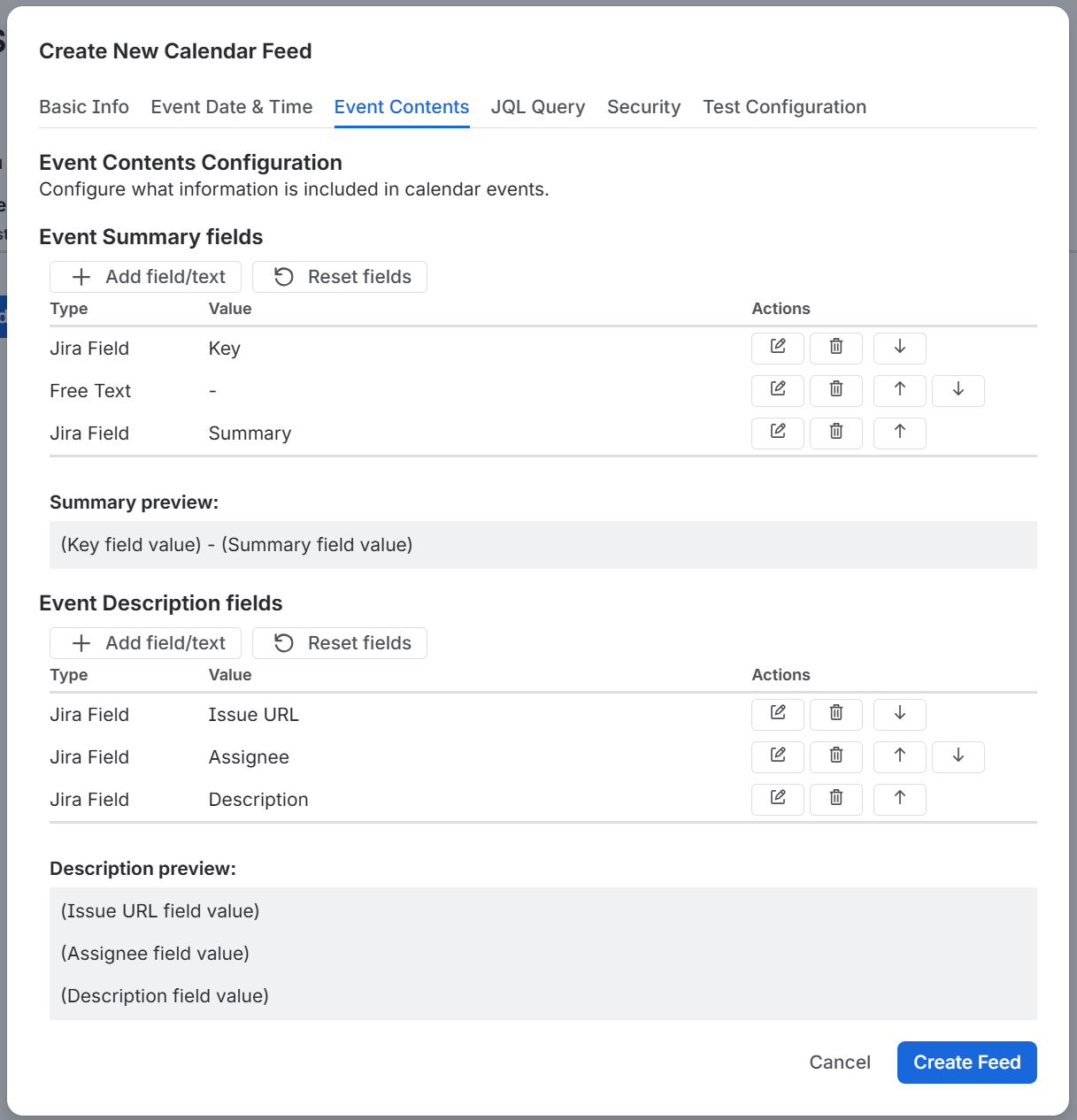
Specify which information appears in the Summary and the Description of each calendar event.
In a typical calendar application, the summary is what you see in the calendar grid, and the description is visible once you open the event.
Each of Summary and Description is an ordered list of items. An item is either:
Free Text - static text you type, the same on every event
Jira Field - the value of a field on the work item
Use Add Content to add an item, the arrow buttons to move an item up or down, and the row actions to edit or remove one. Reset fields restores the defaults. A live Summary preview and Description preview below each list show how the result will read.
Field | Default contents |
|---|---|
Summary | Key, the text |
Description | Issue URL, Assignee, then Description |
How the items are joined:
Summary items are joined into a single line, separated by spaces.
Description items are printed one per line.
A field that is empty on a given work item renders as
(empty).
You can add up to 10 items to each of Summary and Description.
Which fields render usefully
Most Jira field types are converted into readable text, including:
plain text, numbers, dates, date/times, users, priority, single-select options, project, work item type, progress, time tracking, team, status, status category, votes, watchers, comment count, and multi-value fields such as labels or linked items.
Rich text fields - Description most notably - are converted to plain text, including @mentions, because calendar events cannot carry formatting.
Long values are shortened: a description is capped at 1,000 characters, and a summary is reduced to a single line.
JQL Query tab
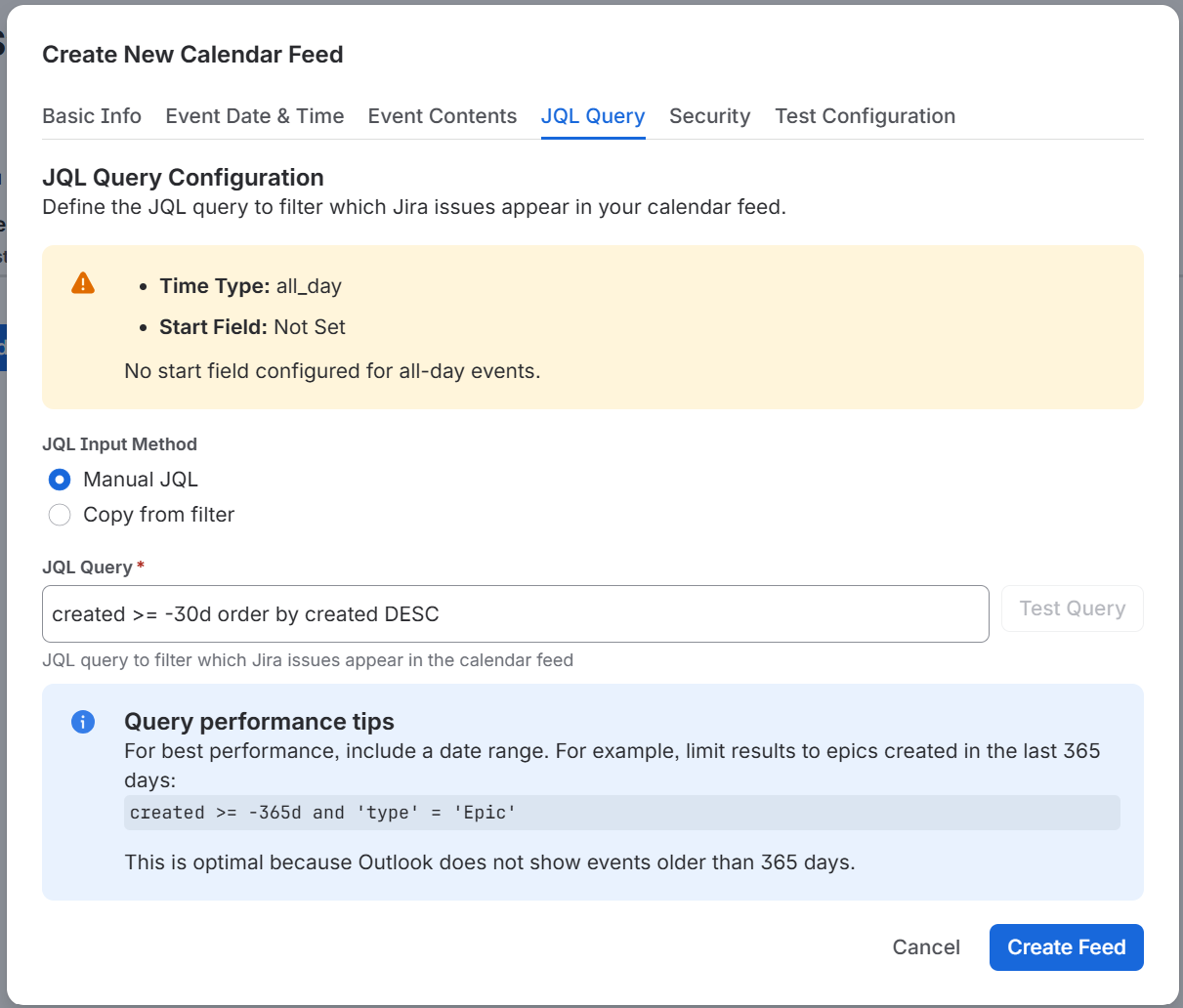
Defines which work items are exported.
JQL Input Method offers two ways to supply the query:
Manual JQL - type the query yourself. If you want a ready-made query without creating a filter, run a search in Jira, switch to JQL view, and copy the query it produces.
Copy from filter - search for a saved filter by name, or leave the search empty to list all of them, including your favourites. Selecting one copies its JQL into the query field.
JQL Query (required) is the query itself. It defaults to created >= -30d order by created DESC.
Test Query runs the query and lists the matching work items, showing each one's key, summary and status alongside the actual values of the date, duration and repetition fields you mapped on the Event Date & Time tab. This is the fastest way to confirm your field mapping is picking up real values. If the query is invalid, the error from Jira is shown instead.
A panel at the top of the tab summarises your current date and time mapping and warns you if something required is not yet set.
Query performance tip: Include a date range in the query. For example, to limit results to epics created in the last 365 days:
created >= -365d and 'type' = 'Epic'
As well as being faster, this matches what clients will actually display - Outlook does not show events older than 365 days.
The currentUser() JQL function
In Jira you can use the currentUser() function to write queries that return different results depending on who is looking. Such queries should not be used with Calendar Sync for Jira.
Calendar Sync for Jira runs every feed query as the app itself, not as a person. Since the app has no work items assigned to it, currentUser() matches nothing, and the feed comes back empty.
This is deliberate, for performance and for security: the query runs once, not once per viewer. To give different people different calendars, use the Security tab rather than the query. See Common use cases.
Security tab
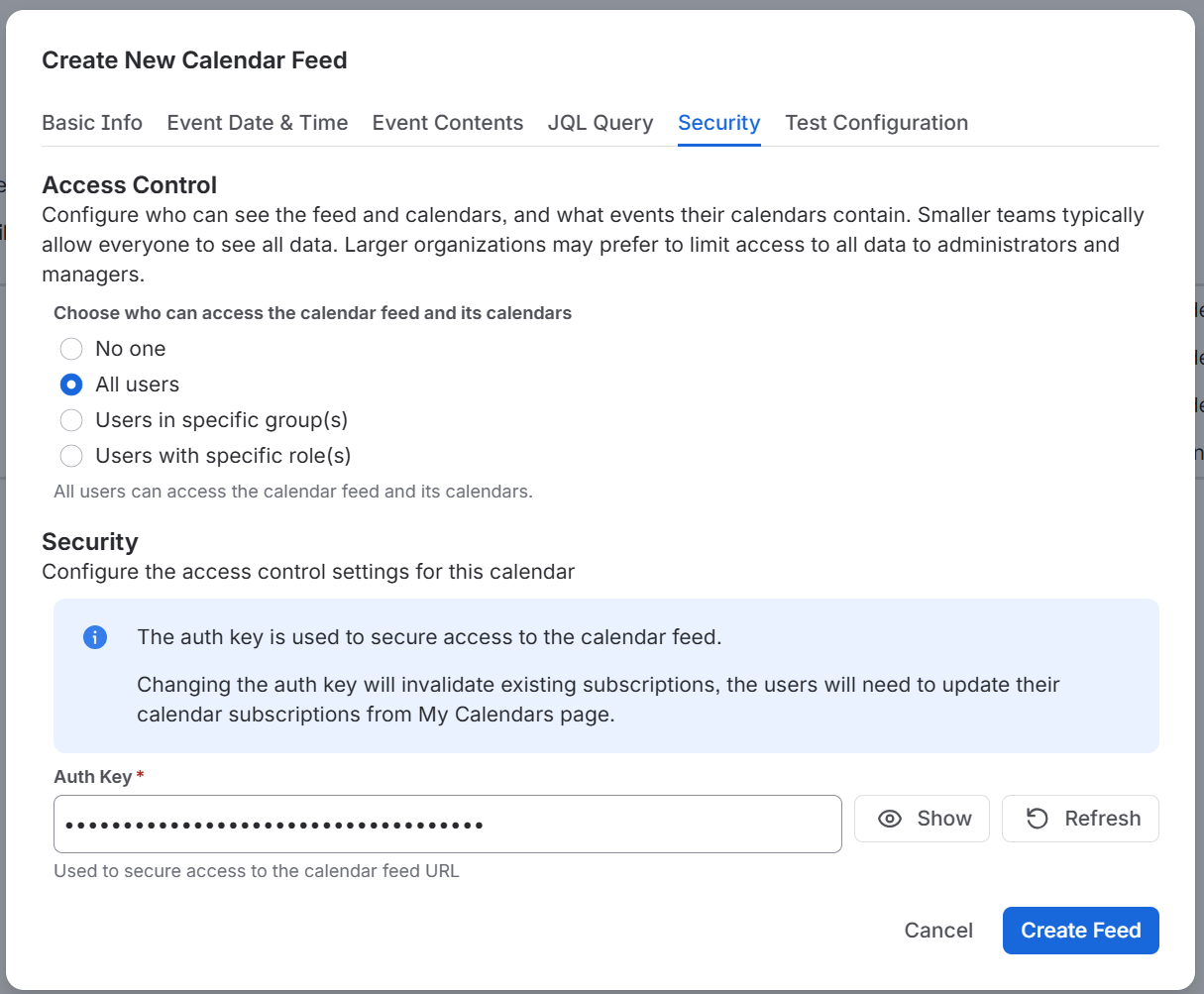
This tab controls who can see the feed and holds the key that protects its URL. It is covered in full on the Security page; the fields are:
Choose who can access the calendar feed and its calendars
Option | Effect |
|---|---|
No one | Nobody sees this feed on their My Calendars page |
All users | Every Jira user on the site sees it |
Users in specific group(s) | Only members of the groups you name |
Users with specific role(s) | Only people holding the project roles you name |
Choosing Users in specific group(s) reveals a User Groups picker.
Choosing Users with specific role(s) reveals a Project Roles selector. Each rule names both a project and a role - you must specify both. A user sees the feed if they hold any one of the named roles in its paired project.
Auth Key (required) - the secret embedded in the feed's URL.
A random key is generated for you when you create a feed, so there is normally nothing to do here. The field is masked; use Show and Hide to reveal it. The button beside it reads Generate when the field is empty and Refresh when it already holds a key.
If you set a key yourself, it must be longer than 20 characters. The generated keys always are, and there is no reason to prefer your own: a random key is harder to guess than anything memorable.
Changing the Auth Key invalidates every existing subscription to this feed. Users will need to take the new URL from their My Calendars page and resubscribe. It is the only change that has this effect - see Calendar updates.
Test Configuration tab
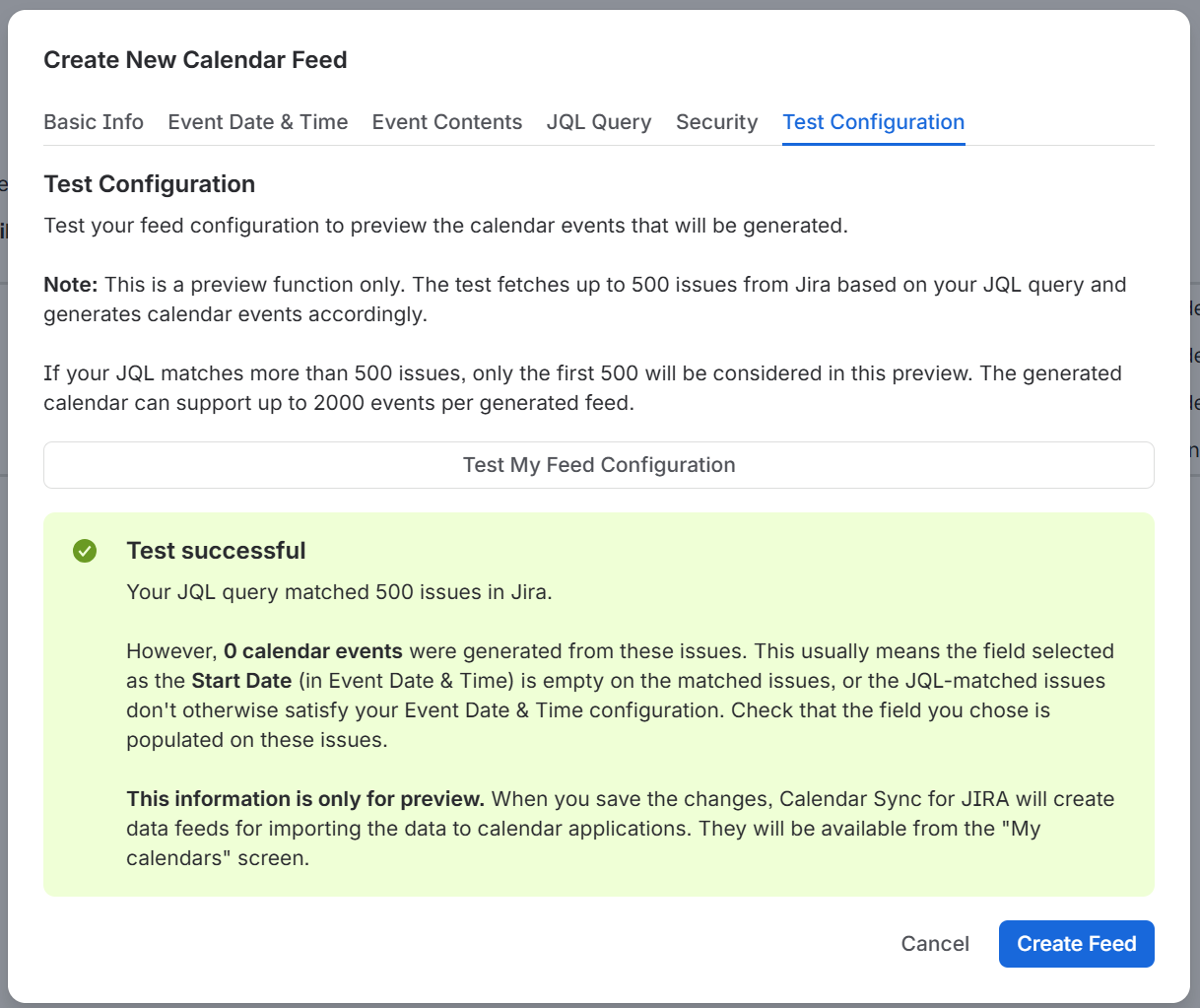
At the end of the form, Test My Feed Configuration shows you the events the current settings would produce, before you commit them.
Each row shows the event's start, its end, whether it repeats, and the summary and description as they will appear. Dates are displayed in your own locale and timezone.
For speed, the preview uses a sample of at most 500 work items, but the events it produces have exactly the same structure as the real export. The preview is not saved anywhere, and it does not create or update a calendar - save the feed to do that, then collect the URL from My Calendars.
The Create Feed button is disabled while the form has anything missing, and a Fix validation errors first warning tells you so. Work through the other tabs, and it becomes available as soon as the configuration is complete.
If your query matches work items but the preview produces no events, a message will be displayed and will point to the likely cause.
Example: The field chosen as the Start Date Field is empty on the matched work items, or they do not otherwise satisfy your Event Date & Time settings.
This is the most common configuration mistake, and the preview is the quickest way to catch it.
Test Query on the JQL Query tab and Test My Feed Configuration do different things. Test Query checks that the query is valid and shows the raw field values. Test Configuration shows the finished calendar events.
Work items with an empty or unreadable date field are excluded from the preview, just as they are from the real export.