Installation and licensing
Installing the app
Install Calendar Sync for Jira from the Atlassian Marketplace, as you would any other Jira Cloud app. No other setup is needed; there is nothing to host, no network changes to make, and no outbound connections to allow.
Calendar Sync for Jira is a paid app. See Licence states below for what happens during a trial and after one.
First-run setup
The first time the app runs, it creates the storage it needs. Until that finishes, both of the app's screens show
Finalizing setup, please wait…
This is a one-time step. It usually takes a few minutes, but it can take 5 to 10 minutes or longer on a large Jira site. The page refreshes itself automatically once setup is complete; you don’t need to reload it.
Note: If you still see this message after 20 minutes, contact support. The app will show a diagnostic screen after a few minutes of waiting; the information on it is useful to include in your support request.
The same check runs again after the app is upgraded, so you may briefly see this message after a new version is released.
Where to find the app
For administrators - the feeds page
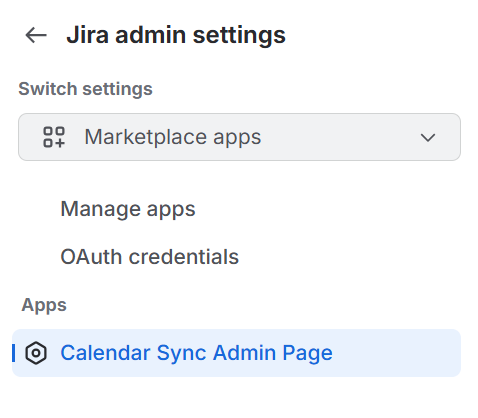
Go to Jira settings → Apps → Calendar Sync Admin Page.
This is where you create, edit, duplicate and delete feeds, review their export status, and set the global sync schedule. It is available only to Jira administrators.
For everyone - My Calendars
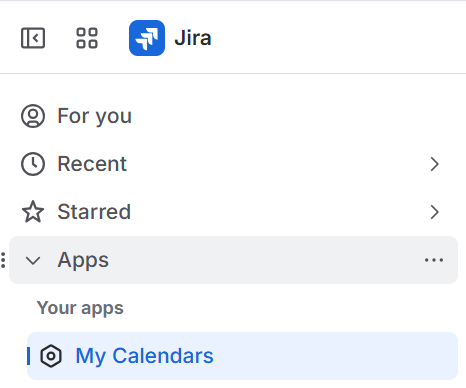
Open the Apps section in the Jira sidebar and choose My Calendars.
This page lists the calendars you are authorised to view and provides the URL to subscribe to each one. See Using the Calendars.
In the previous Connect version of this app, this page lived under your user profile menu.
On Forge, it is a global page under Apps instead.
Licence states
Licence | What happens |
|---|---|
Active | Everything works normally. |
Active trial | Everything works normally. A banner on both pages shows the date your trial ends. |
Trial ended | Both pages show Trial Ended. Purchase a licence to continue. |
No active licence | Both pages show License Required. Contact your administrator. |
While the licence is not active:
calendar URLs stop returning data - subscribed applications receive an error rather than an empty calendar, so existing events already downloaded into a client may linger until that client next refreshes
feeds are not rebuilt, so no new data is prepared
Restoring an active licence restores both, without any reconfiguration. Your feed configurations are untouched while the licence is inactive.