Org Users Only
CLOUD NEW
Org Users Only is designed to work in a Jira site with Assets.
Installing Org Users Only
To install Org Users Only, first, go to the Apps menu on the desired site. Then, under the Admin menu, click on Find new apps. Next, search for Org Users Only, select it, and proceed with the installation.
Features/Usage
This app synchronises users from a provided Atlassian organisation to Assets.
Users are pulled from the organisation and compared with available data about the user in Assets. The app retrieves a list of users from the organisation and compares them with the user’s Asset object in the selected Assets schema and object type. The user is matched by their account ID. If an Asset object cannot be found for the user, one is created. If any data point in the Asset object does not match the data from the Organisations API, the Asset object is updated to ensure data is kept up to date.
Sync Users to Assets
When viewing the app, the user sees a form with four fields.
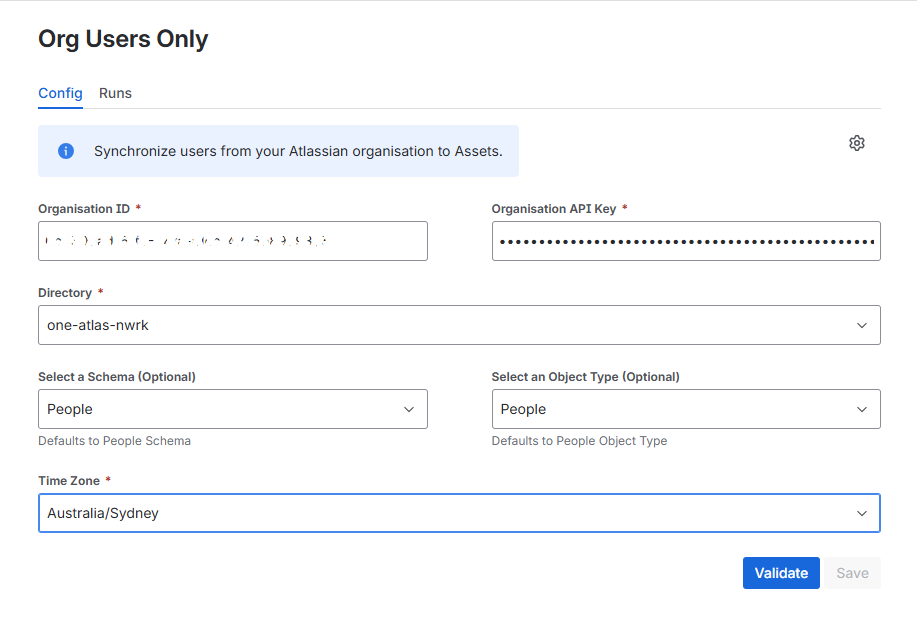
Provide the Organisation ID for the organisation to retrieve users from and an API key created for this organisation.
The Assets schema and object type the app will sync the users to can be specified in the dropdown. The defaults are a “People” schema and “People” objct, but you can validate an object of your choose by using the Validate button.
Schema Validation
When a Schema and Object has been select, click the Validate button to ensure you have all the attributes needed. If anything is not right, you will see message similar to this:
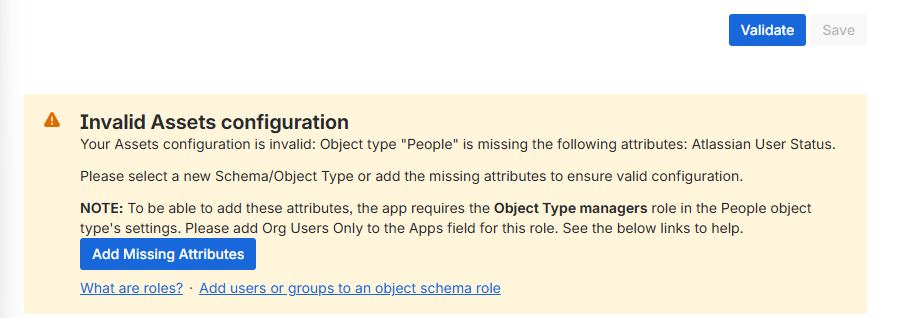
Select “Add Missing Attributes” to correct any object issues.
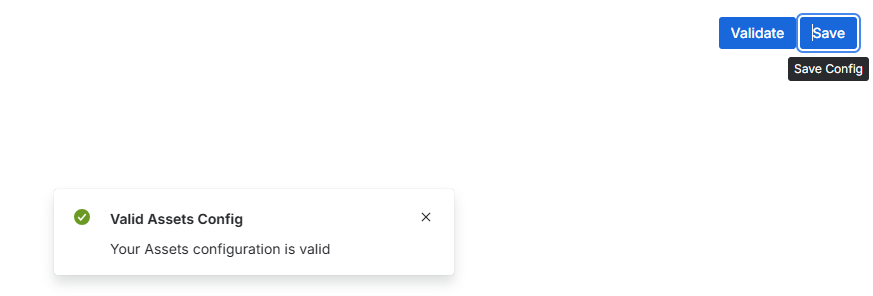
Validate again when your object has been corrected. On successful validation, the Save button will be activated. Save your settings.
Sync options
As of V3.0.0 you can now schedule your Org Users Syncs. This allows a continual update to your asset object schema with the people in your organisation.

Schedule syncs
When you select the Schedule syncs option, you are presented with a modal like this:
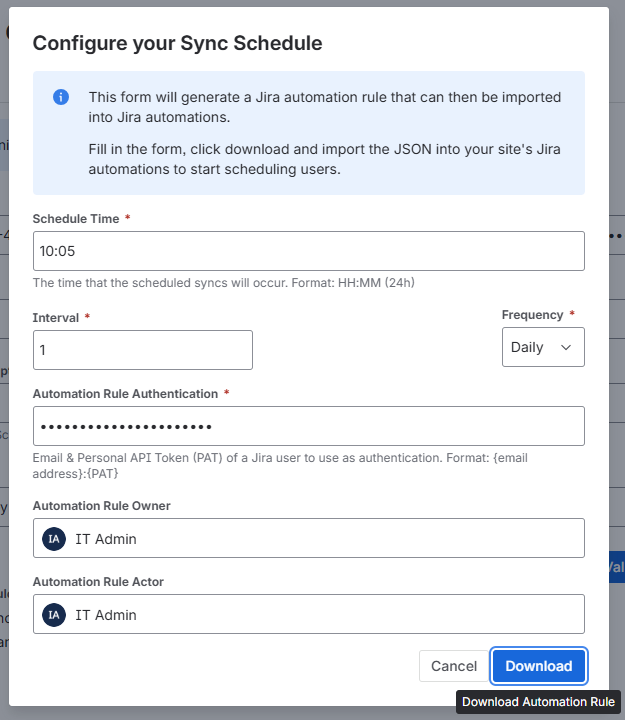
As described in the modal, the form will create an automation rule that you then import into your system.
Complete the form, download the Automation rule JSON file and import the rule into your Global Automations configuration.
Perform a manual sync
Click the Sync button to initiate the user synchronization process. Progress logs will be displayed on the page, detailing any issues encountered for each user throughout the syncing process.
After the sync, a summary will be presented, indicating the number of user Asset objects that were created or updated, objects that remained unchanged (indicating data is current), and those that encountered errors.
The data Synchronised
User data
The user's account name (stored in the
Nameattribute)The user's email address (stored in the
Emailattribute)The user's account Id (stored in the
UserandAtlassian IDattribute)The user's status (stored in the
StatusAttribute)The user’s Atlassian User Status (stored in the
Atlassian User Statusattribute)
User statuses
Active(the user is an active user of the site)Unverified(the user has not logged in)Inactive(the user is no longer a user of the site)
Sync Logs
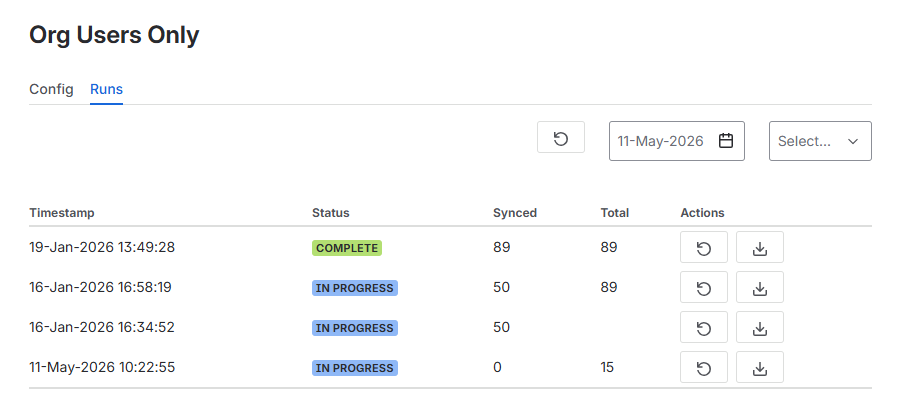
As the sync progresses, logs are shown in the Runs tab. These logs can be downloaded and show information such as the number of users found in the organisation, any Asset attributes that needed to be created that were found to be missing from the selected schema, any errors with syncing a user and a final summary of changes made to the Assets objects.
A progress count also shows how many users have been synced so far.
Status Configuration
The user’s status is stored in the Status attribute. It is possible that Assets in the installed instance may not have the listed status. This could potentially result in an error syncing a user.
One limitation of Forge is its inability to retrieve a list of available statuses in Assets. To address this issue, users can utilize a configuration form, which can be accessed by clicking on the cog icon  within the app.

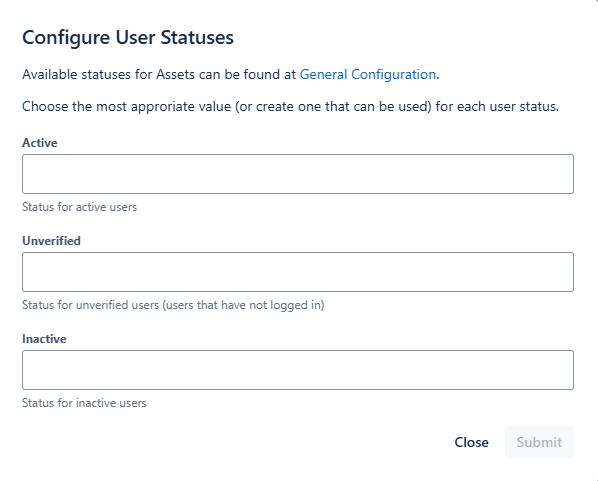
This configuration form provides a link to the available statuses in the global Assets configuration for the installed instance, as well as input fields for each user status. The user is able to review the statuses available in their Assets and copy a relevant status into the field. The app will then use this status, replacing the original user status value.
Alternatively, users can create relevant statuses that can then be used through the link.
Known Limitations
The app is currently unable to retrieve or create statuses in Assets
This could potentially cause a user sync to result in an error
See Org Users Only for the workaround